Move your .dk domain from Punktum dk to echo reply
Already opened your transfer in echo reply? Continue with Fast Track.
Use this guide if you want echo reply to take over management and renewal of a domain that Punktum dk currently manages for you. Your website and email can stay where they are. Keep your current hosting and email services active and leave your DNS settings as they are.
The transfer costs 0 DKK. Your domain keeps its current expiry date, and you pay for future renewals separately.
If you received a notice to choose a registrar, the deadline is 30 June 2028 for domains still managed directly by Punktum. If you’re still deciding who should manage your domain, see what the .dk change means for you.
Start at Punktum. You choose echo reply there, and Punktum sends you back to us to finish. It takes a few minutes and costs 0 DKK.
Start at PunktumOpens Punktum dk self-service in a new tab. Keep this page open for the steps.
1. Choose echo reply at Punktum
- Open Skift til forhandlerhåndtering (Switch to registrar management) in Punktum dk self-service and sign in if asked.
- Under Vælg domænenavne (Choose domain names), tick each domain you want to move.
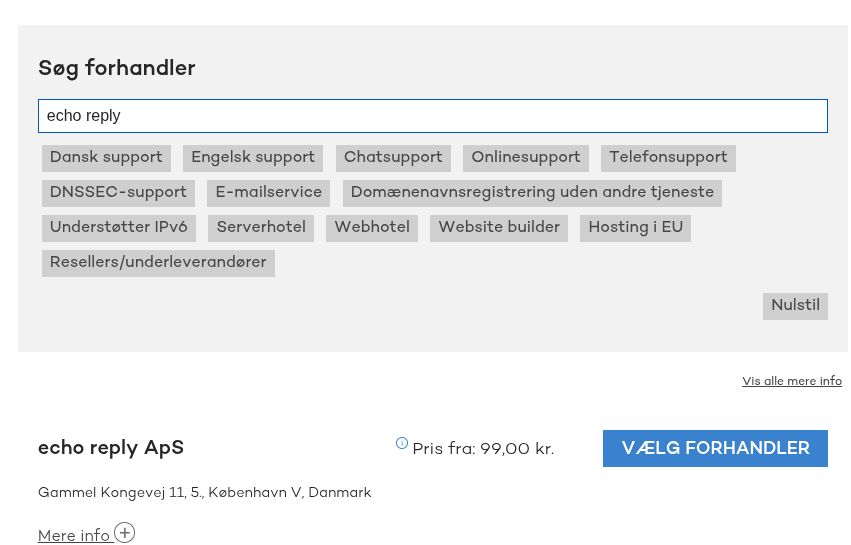
- Under Søg forhandler (Search for a registrar), type echo reply. Punktum lists registrars in a different order on every visit, so searching is the quickest way to find us. Click Vælg forhandler (Select registrar) next to echo reply ApS. Punktum’s Pris fra is the starting price in its registrar directory. Your transfer total is 0 DKK at echo reply checkout.
- Check that echo reply is selected, give your consent and click Gennemfør flyt hos forhandler (Complete the move with the registrar). Punktum then opens your transfer at echo reply. Keep that page and continue with step 2.
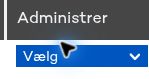
If the link does not open that page, sign in to Punktum dk self-service and find your domain under Domænenavne (domain names). Beside the domain, under Administrer (Manage), click Vælg (Select), then Skift til forhandlerhåndtering.
If Punktum shows Generer kode (Generate code) or a code instead, use the transfer code steps. If another registrar already manages the domain, follow the general transfer guide. Punktum also has its own illustrated guide.
2. Finish the transfer in echo reply
With Fast Track
- On Continue your domain transfer, sign in or create an account. If you create one, open the account activation email, then return to the transfer page and sign in.
- On Verify the registry contact, enter the email address Punktum has for the domain. It can be different from your echo reply sign-in address. Click Send verification code, enter the code from the email and click Verify email. The code lasts up to 15 minutes.
- Choose your Organization, the account space where you’ll manage the domain, and click Claim transfer. If you have no organisation yet, select Create organization and return to the transfer page. Complete this step within 24 hours of starting at Punktum. The link can expire sooner if Punktum’s transfer authorisation expires first.
- On Punktum transfer progress, check the domain, organisation and zero total. Review and accept the terms, confirm the order and click Review price and continue to secure checkout. Complete checkout for each domain you’re moving. If you see an unexpected charge, stop and contact support.
3. Check that the domain has moved
Return to echo reply after checkout and check the transfer status. If you used Fast Track, look for each domain on Punktum transfer progress. If it is still processing, wait for it to finish. When the transfer is complete, open Domains → Registered Domains and check that the domain appears in the organisation you chose. Check the expiry date, then open your website and test sending and receiving email if you use the domain for email.
If you also want echo reply to run your DNS, follow the Transfer Domain guide to copy and check your existing DNS records before changing nameservers.
Already have a transfer code?
Use these steps if you have a code starting with OWN-TRANSFER-, or if Punktum showed Generer kode (Generate code) instead of Gennemfør flyt hos forhandler. Copy the entire code, including OWN-TRANSFER-. Punktum may call it an AuthID or autorisationskode. It is valid for 14 days.
If you cannot sign in to Punktum, its sign-in page has a box titled Flyt dit .dk-domænenavn til forhandlerhåndtering. Enter your domain there and Punktum emails a sign-in link to the address registered for the domain.
- Sign in to DNS by echo reply or create and activate an account.
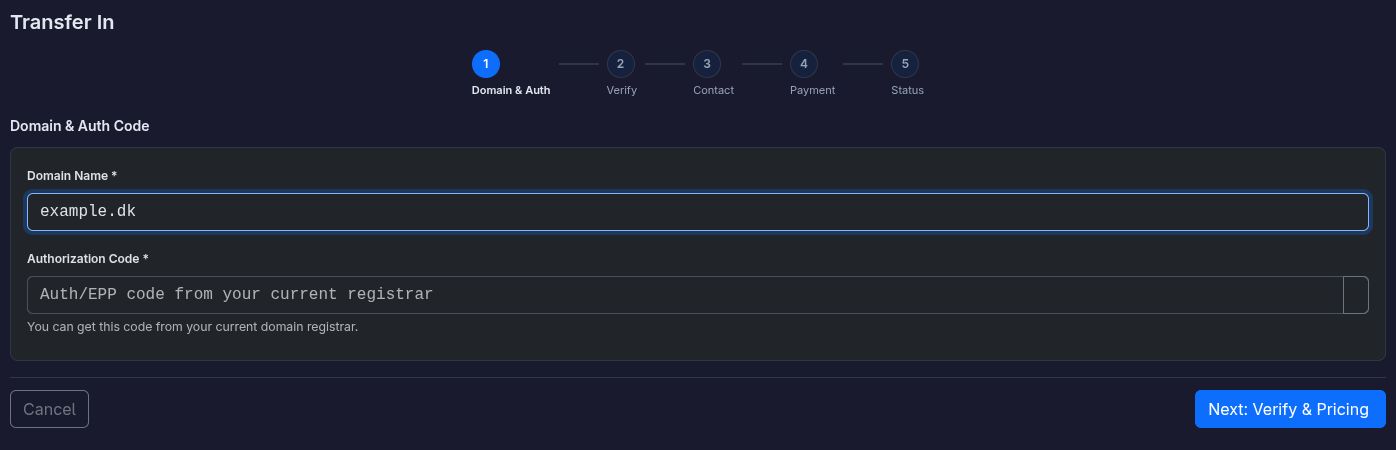
- Open the Transfer In form or go to Domains → Transfer → Transfer In. Select your Organization, the account space where you want to manage the domain. If you are new, create one first. If the organisation you need is missing, ask its administrator for permission to transfer domains.
- Enter your full domain name, such as
example.dk. Paste the entire code into Authorization Code. Keep the code private and enter it only in this form. - Click Next: Verify & Pricing and check that the price is zero. The first screen checks the domain. Punktum checks the code when the transfer starts.
- Click Next: Contact Information. On the Registrant screen, you’ll see that the domain stays in the current holder’s name. If the form asks for additional contacts, choose the profiles you want to use.
Confirm the free order. Click Next: Review & Pay. Check the domain, organisation and zero total, then review and accept the required terms. Click Continue to payment and finish checkout. This confirms the order for 0 DKK. If you see a charge you did not expect, stop and contact support.
If you get stuck
- The transfer code has expired or was rejected. Check that you copied the whole code for this domain. If no order is processing and the code has expired, generate a new one at Punktum.
- The Fast Track email code hasn’t arrived. Check spam and make sure you entered the email address Punktum has for the domain. Select Send another code. If the transfer link expired and no order is processing, start again in Punktum.
- Checkout was interrupted. Open the original order and choose Continue Checkout or Continue existing checkout if offered. If you can’t find the order or are unsure of its status, contact support before trying again.
- You can’t sign in to Punktum or cannot generate a code. Use Punktum dk customer service.
- You need help in echo reply. Email support@echo-reply.net with the domain name, the step you reached and any error message or order number. Keep transfer codes, verification codes, transfer links and payment details private.